Transfer Call
Last updated: May 15, 2026
Here you will learn how fonio can intelligently forward calls during a conversation.
Setting Up Call Forwarding in fonio
With call forwarding, you can ensure that your assistant automatically transfers calls to a real person or another phone number (or another assistant) – for example, for particularly important matters or personal support.
For forwarding to work reliably, two components are required:
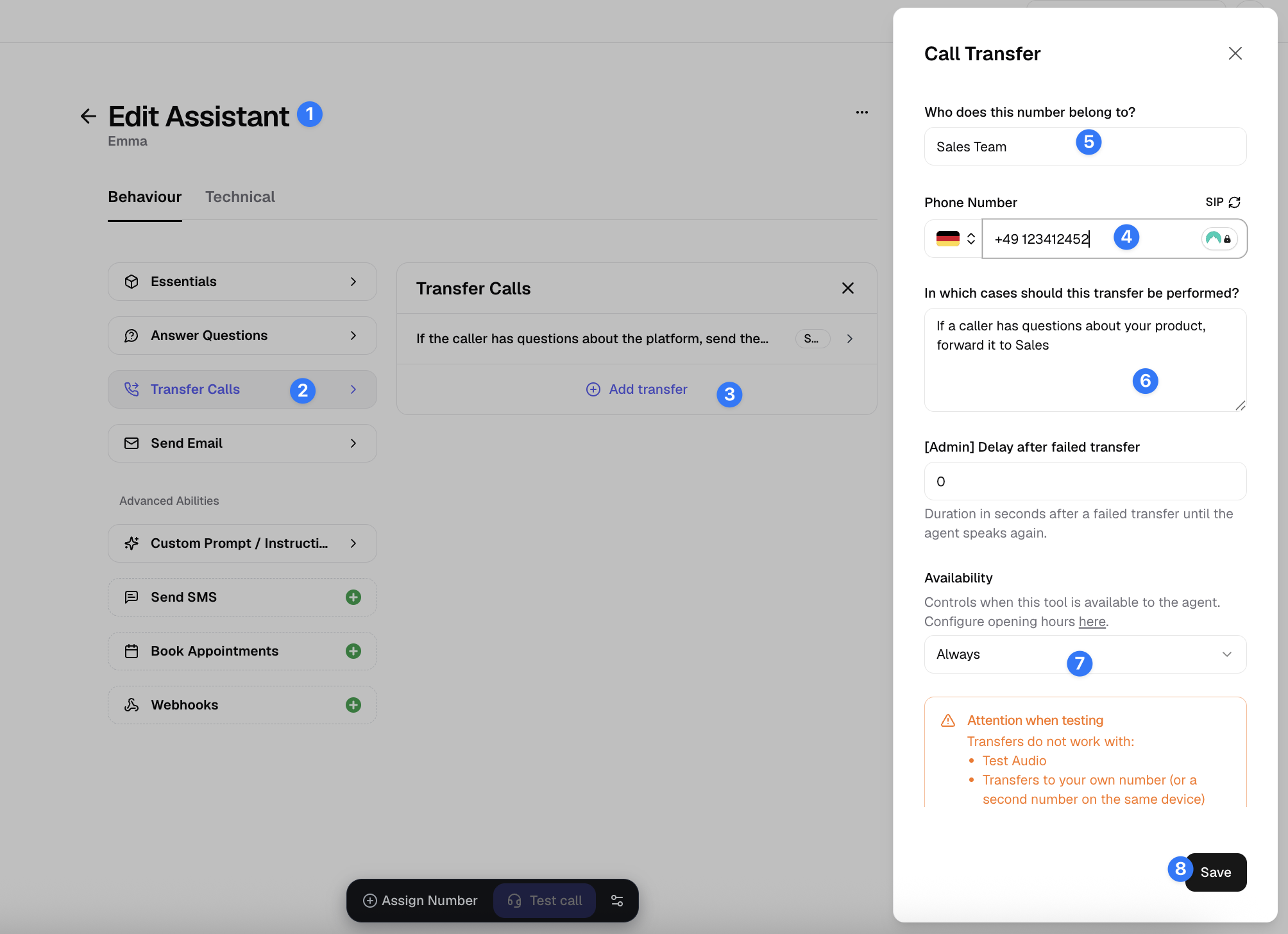
1. Click on Transfer Calls
Here’s how:
Open your assistant in the fonio app.
Click on Transfer Calls
Click “Add Transfer”
Enter the destination address:
Phone number (e.g.,
+43123456789)SIP address (e.g.,
sip:number@provider.com)
Give the call transfer a clear name (e.g., “Forwarding to Sales”).
Important: Fill in the description – The AI reads the call transfer description, in which cases the transfer should be performed. Clearly state in the description when this tool should be used (e.g., “If a caller has questions about your product, forward it to Sales”).
If you setup your opening hours, you can choose whether the call should be transferred always or only within/outside of your opening hours.
If you setup your opening hours, you can choose whether the call should be transferred always or only within/outside of your opening hours. Note: If you configure transfers to only work during opening hours, the AI will not transfer calls outside those hours - instead it will follow the behavior defined in your prompt for handling calls outside opening hours.
If you setup your opening hours, you can choose whether the call should be transferred always or only within/outside of your opening hours.
If you setup your opening hours, you can choose whether the call should be transferred always or only within/outside of your opening hours.
Important: Phone numbers must always be provided in international format for forwarding, without spaces or other characters (e.g., +436603600834).
2. Define the Forwarding Logic in the Prompt
In the prompt, you specify when and where to forward and espeically what happens if the transfer fails. The AI then automatically recognizes during the conversation whether the conditions are met.
Tip: You can also configure the assistant to actively ask the caller before transferring the call whether they actually want to be transferred. Example: “I’d be happy to connect you with our support team. Should I transfer you now?” This confirmation prompt makes the transfer process more user-friendly and less abrupt.
Example:
If the caller has a question about their order, please forward to Ms. Mustermann.You can define multiple conditions, e.g., for different concerns or times.
Example:
If the caller has a question about their order, please forward to Ms. Mustermann.
If the caller wants to place an order, forward to Max from Sales.
If the call transfer failed, understand the reason of the call and send an email
Goal: Smooth Handover
If both the prompt and the tool are set up correctly, your assistant reacts in real time during the conversation and forwards callers directly – without your intervention.
Forwarding can also be used for:
Support hotlines
Sales calls
Emergencies or escalations
Absence cover
Technical note:
Phone numbers must be complete with country code (e.g.,
+49,+43).SIP addresses must be correctly formatted (e.g.,
sip:name@domain.com).When forwarding via mobile network providers, the original caller number may not be transmitted. In this case, the assistant only sees your own number as the caller.
International call transfers may be blocked by default due to higher costs. If you need to transfer calls to international numbers, contact support@fonio.ai to have this feature enabled for your account.
What happens if a transfer fails?
If no one picks up during a transfer, the caller automatically returns to the assistant. However, this only works correctly if your phone system actively rejects the unanswered call.
Important: If your phone system redirects or forwards the unanswered call back to fonio instead of rejecting it, the AI will create a new call and incorrectly believe the original transfer succeeded. This causes the same person to appear as multiple consecutive calls in your call history. Ensure your phone system is configured to reject (not redirect) unanswered transfers so the assistant can properly continue the conversation and handle the failed transfer according to your prompt instructions.
Attention when testing
Always test call transfers using real phone calls (not test audio) and ensure you're testing during the time windows configured in your opening hours settings if you've restricted transfers to specific hours.
Transfers do not work with:
Test Audio
Transfers to your own number (or a second number on the same device)
Tip: You can find your fonio assistant’s phone number in the fonio app under “Phone Numbers”. If no number is available yet, you can purchase a fonio number directly there.
If you need help setting up or are unsure how to optimally integrate forwarding into your process, contact support@fonio.ai – we are happy to assist you!