How to set up outbound calls with your assistant
Last updated: February 18, 2026
To make outbound calls with your Fonio assistant, you need to first import and verify a phone number. Here's how to set it up:
Step 1: Add a Phone Number
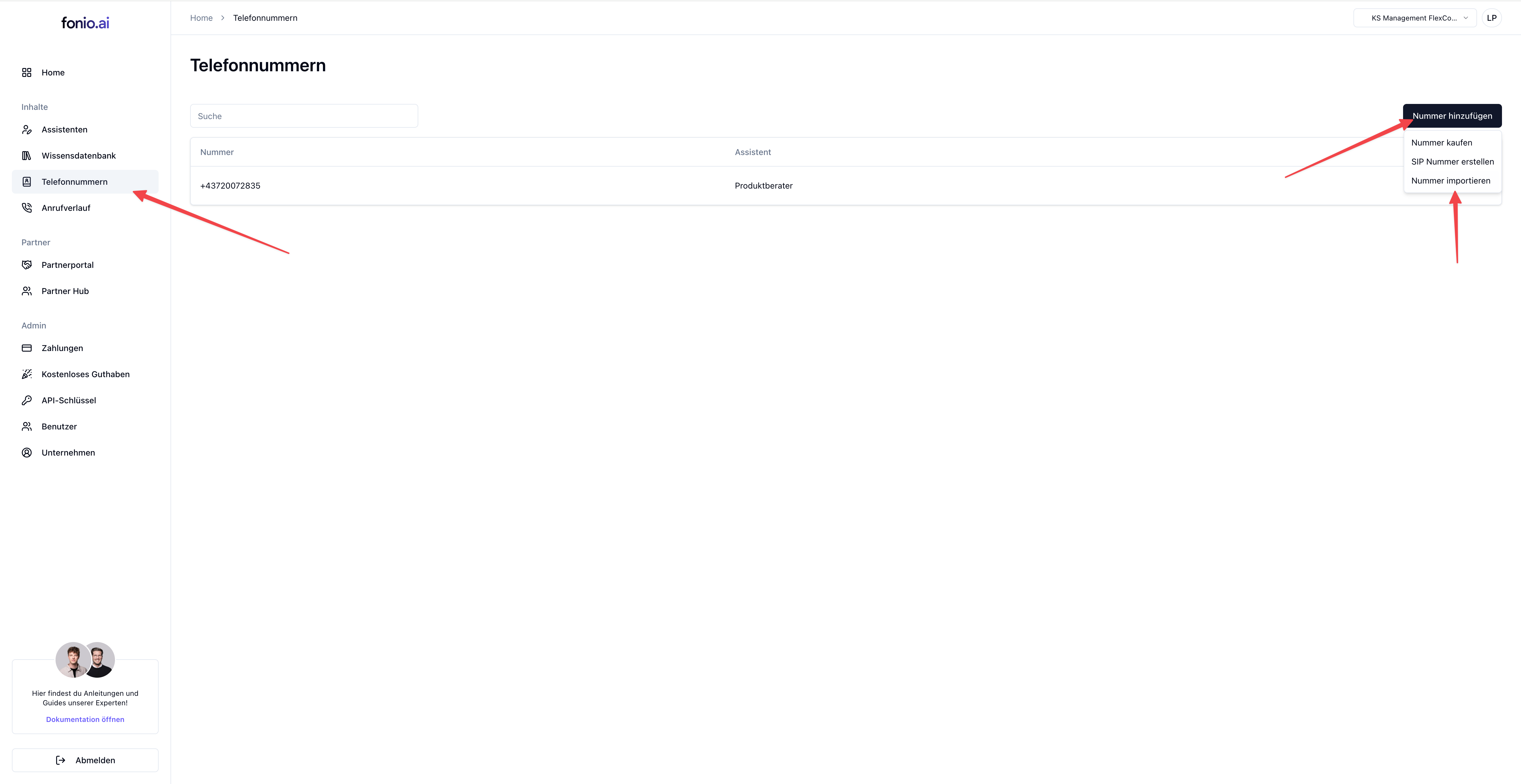
Go to Phone Numbers in your Fonio dashboard and click "Add Number" to import any phone number that you own.
Step 2: Verify Your Number
After entering your phone number, you'll receive a verification call. Answer the call and enter the verification code that appears in the Fonio platform using your phone's keypad.
Step 3: Configure Outbound Settings
When editing your phone number, make sure to fill out the fields under "Optional: Outbound Calls" to enable the number for outgoing calls.
Step 4: Connect Number to Assistant
Link the verified phone number to your assistant in the assistant settings.
Step 5: Test Outbound Calls
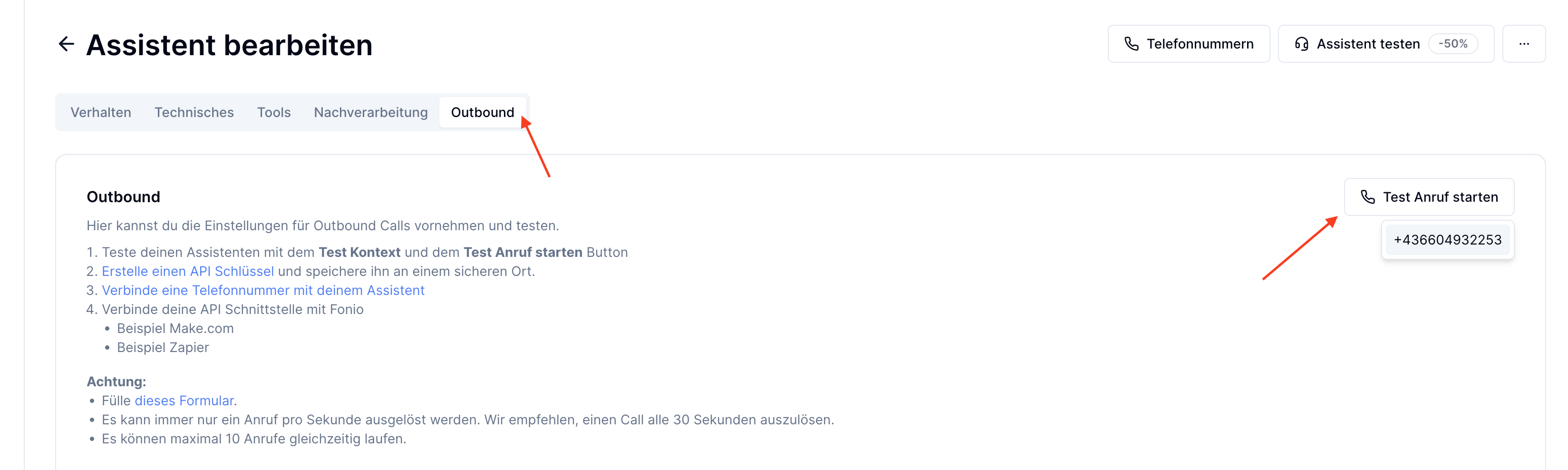
Navigate to the "Outbound" tab in your assistant editor. You can now test outbound calls by clicking "Start Test Call".
Note: You can use any phone number that you own for outbound calls - you don't need a traditional phone system or PBX setup.
Once these steps are completed, your assistant will be ready to make outbound calls using the verified phone number.